NOTE: This is only a guide to the procedure for purchasing tickets via the website. Nothing can be purchased here and all prices and events are examples only. All instructions and important information are marked with a red circle on the images. The guide is designed to be read on a computer, so the images may look strange if read on a smartphone. Please also note that any problems in the system should be reported to the Concert Hall Customer Centre and NOT to the Friends of the Concert Hall. Tickets can also be purchased by calling the Koncerthuset Customer Centre. Ticket sales open at 11:00 on Monday 7 February 2022. Koncerthuset Customer Centre can be contacted on phone number: 3520 6262
Before you start buying tickets, you need to create a profile on the DR Koncerthuset website, which you will need later. It can be created by following this link. If you already have a profile, have your login details ready.
Due to busy periods, you may find yourself queuing to book tickets.
Do not refresh the page to be sent further in the queue, this happens automatically.
Don't book tickets through multiple internet browsers.
When you are in the queue, you will be continuously informed of ticket availability/sold out/waiting list or other important information.
When ticket sales open, there will be a “Buy Ticket” button next to each of our events as shown below:
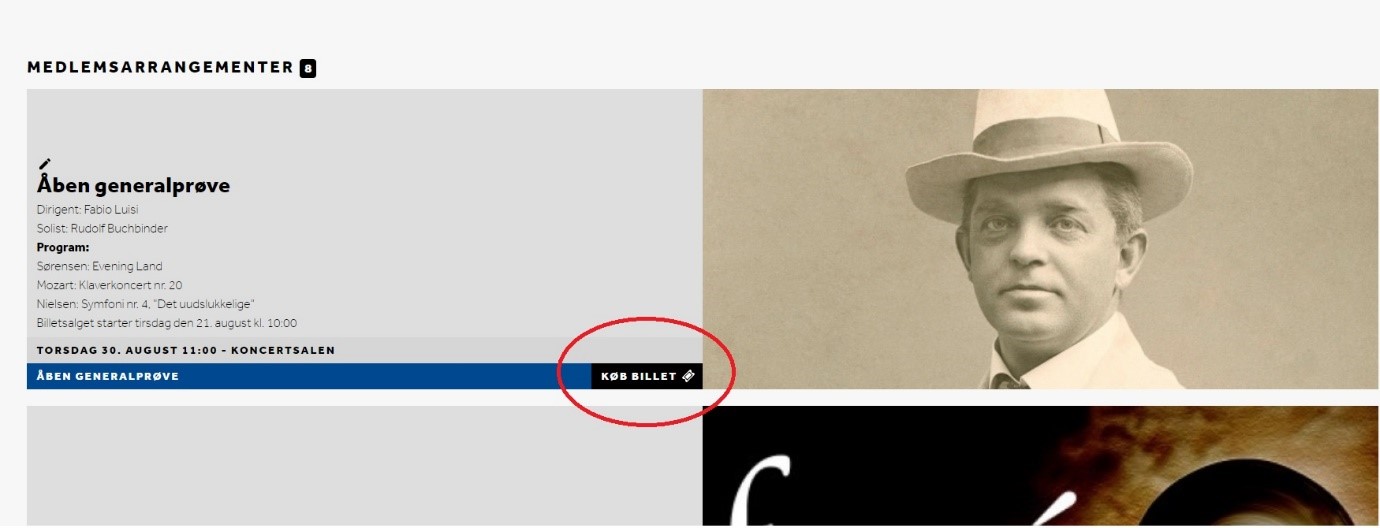
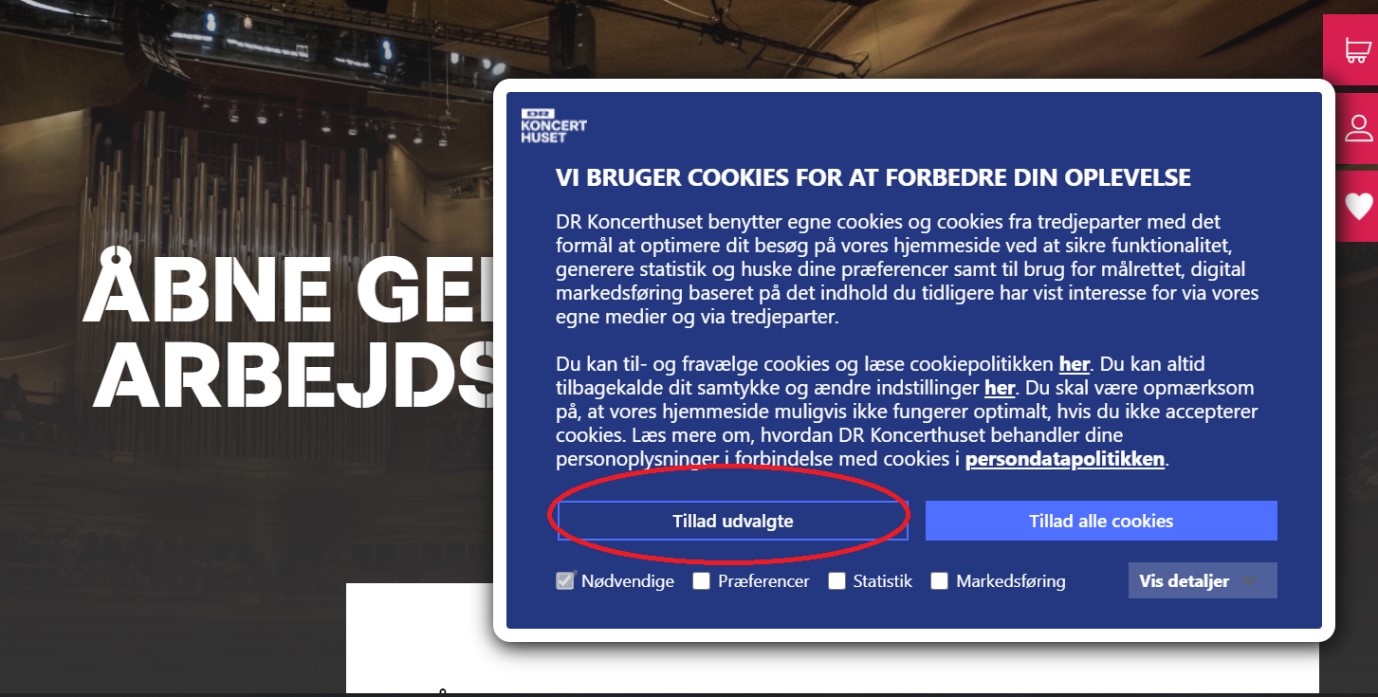
Tap it to go to the page where you can buy tickets. Once you have pressed it, a box may appear asking you to accept cookies. Press ’Allow selected’ or ‘Allow all cookies*:
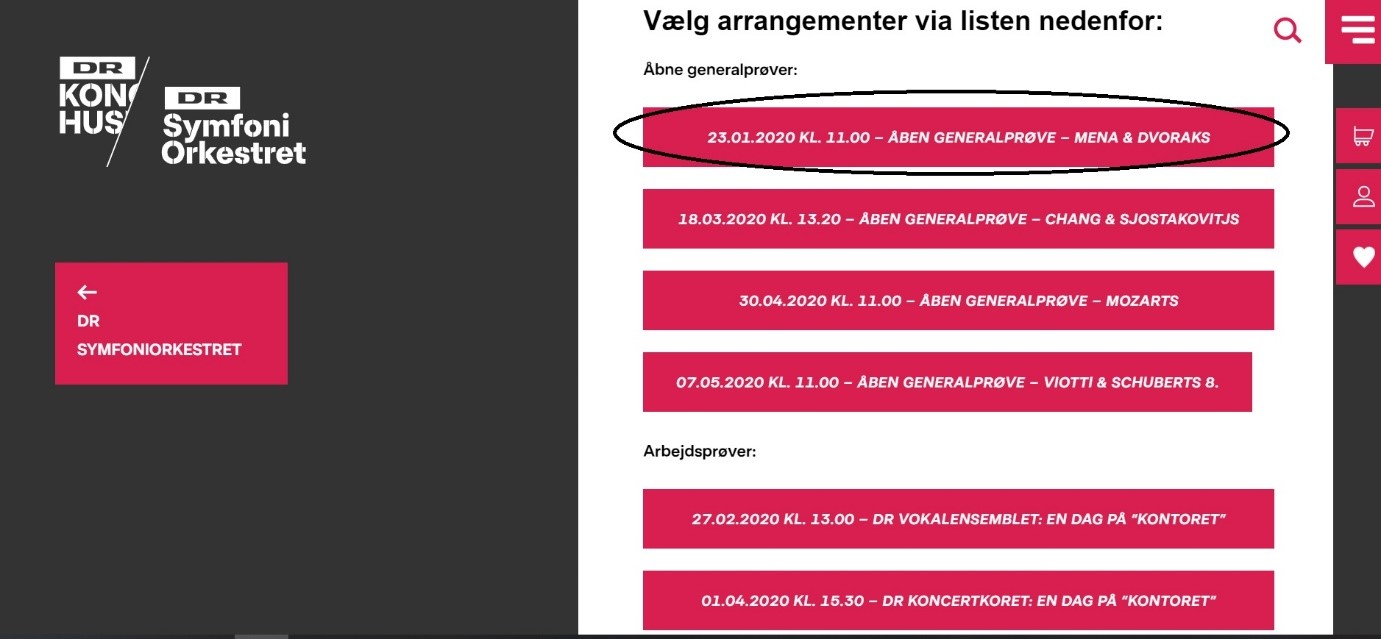
Once you have accepted, or if it doesn't appear, scroll down the page to get an overview of all our events. Click on the event you want to buy tickets for:
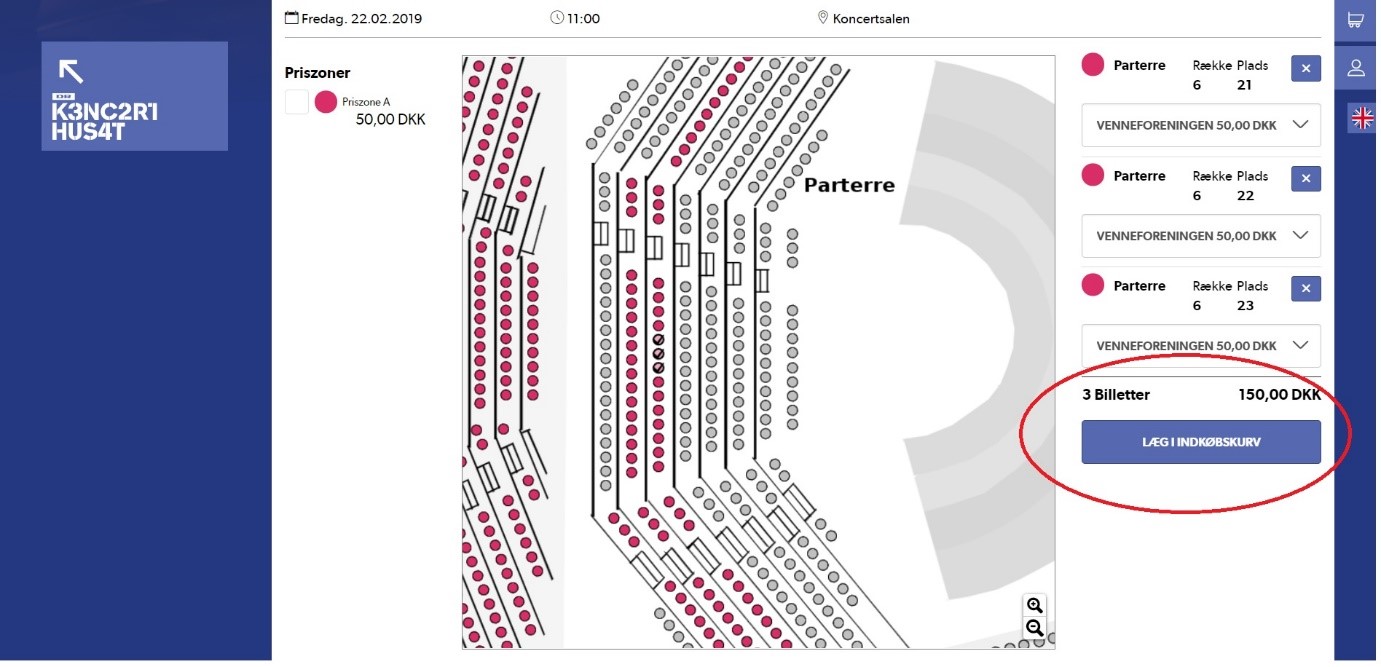
You will now be taken to an overview of the hall for the event you have selected. For rehearsals, you get an overview of the entire hall and you can zoom either by turning the wheel on your mouse or by pressing the buttons in the bottom right corner:
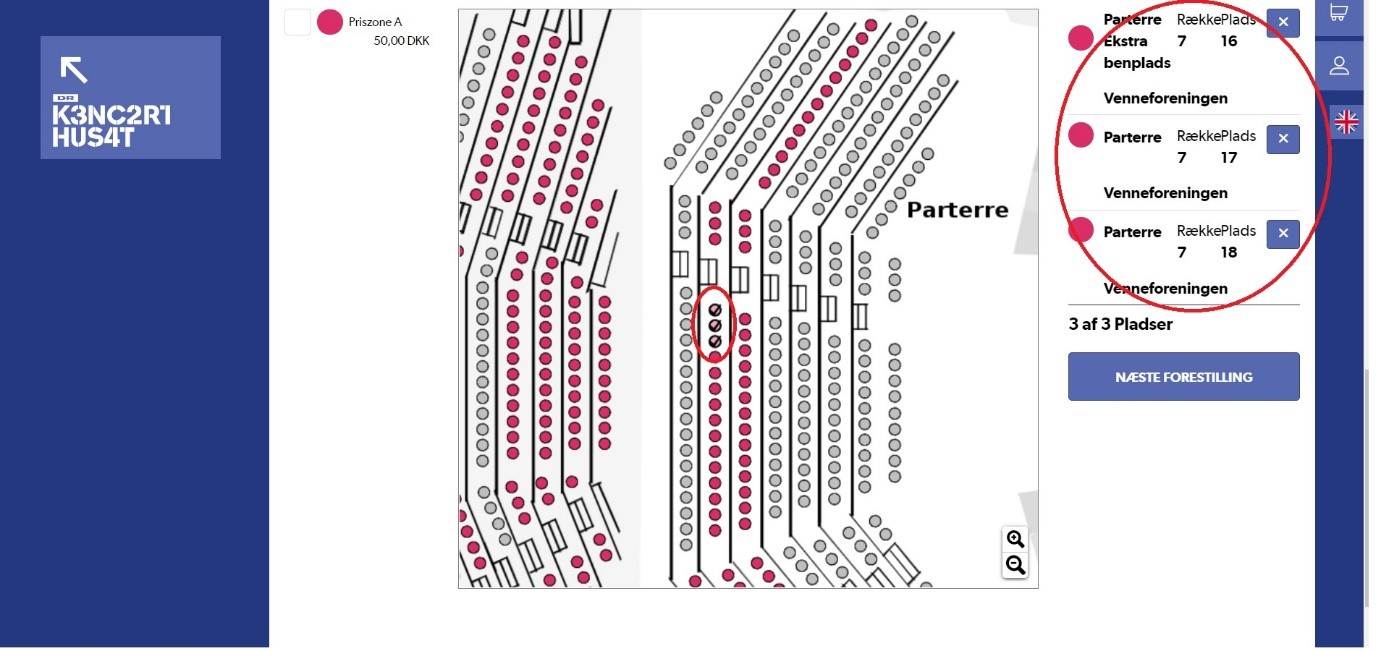
Drag around the hall until you find the seats you want, then tap them one by one until you have the number you want. Once you have selected a seat, it will change colour and be marked with a check mark. Note that the free spaces are coloured red. On the right side of the screen you can see an overview of the selected seats for this event:
Once you have selected all the seats you want for an event, click ‘Add to basket’ to reserve the tickets:
You will now be taken to an overview of all tickets you have booked so far, as well as an overview of other available events. If you want to book more, simply repeat the above procedure for the dress rehearsals. Our Work Rehearsals also have numbered seats, so they follow the same procedure:
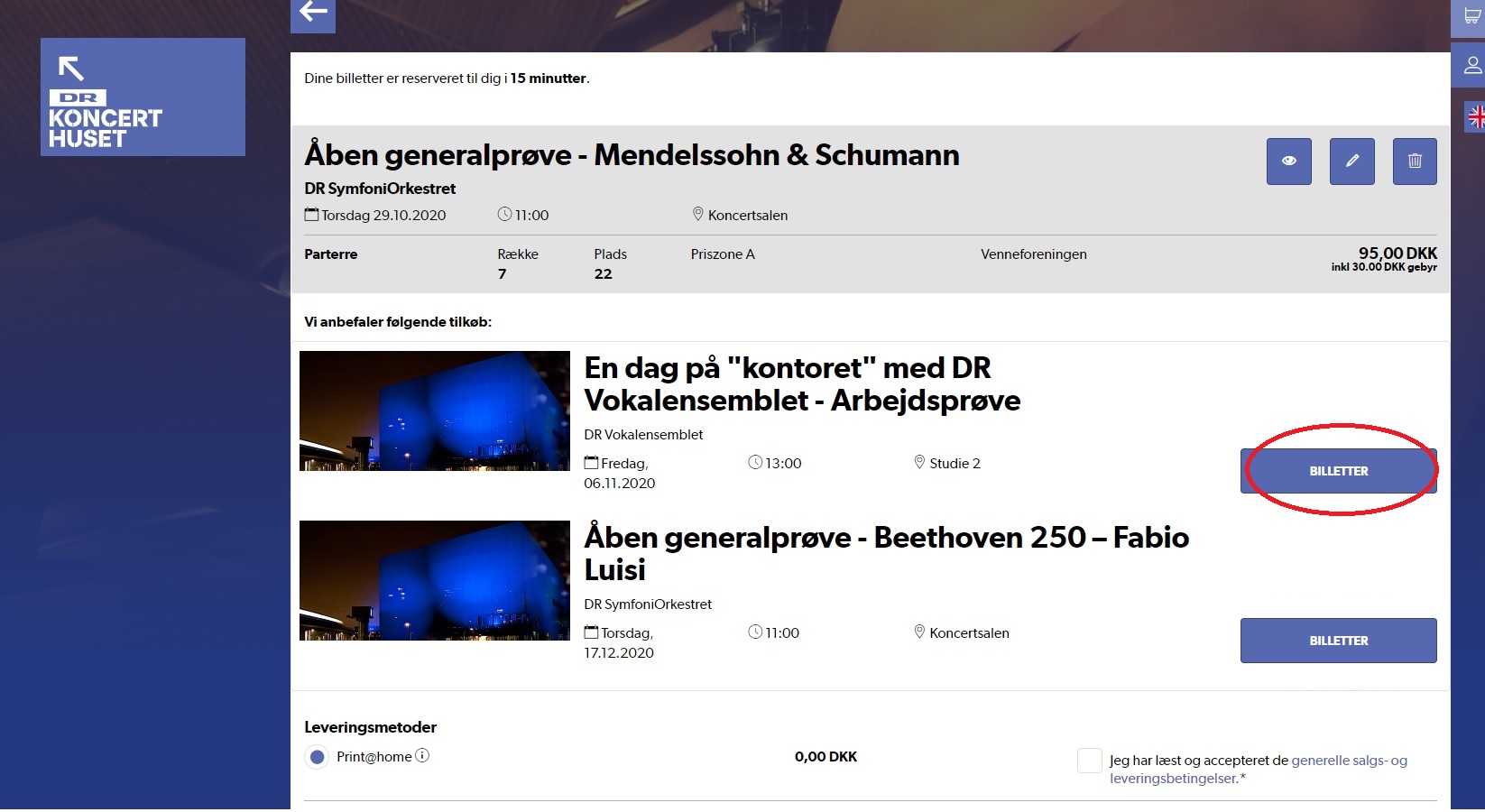
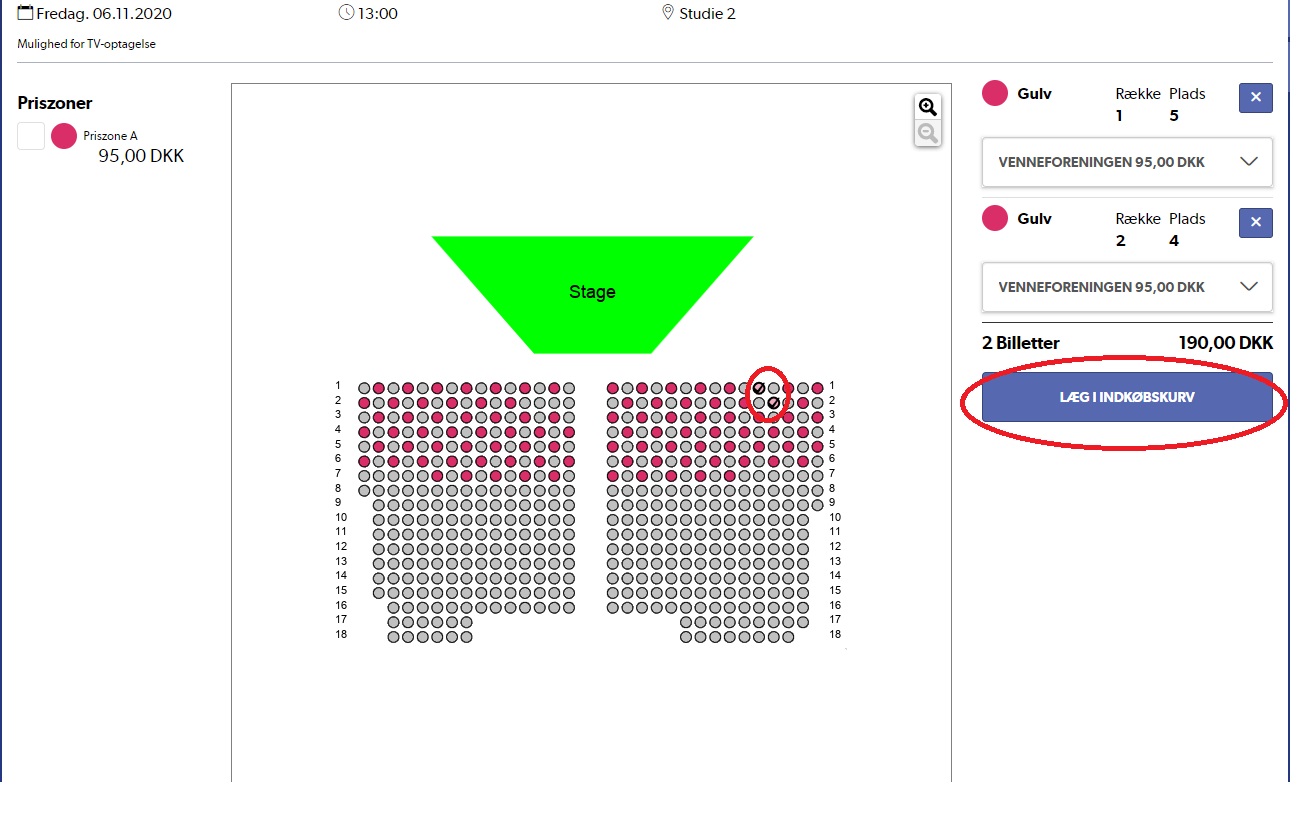
You will also get an overview of the hall and can select seats by clicking on the ones you want. When you're done, click “Add to basket” again:
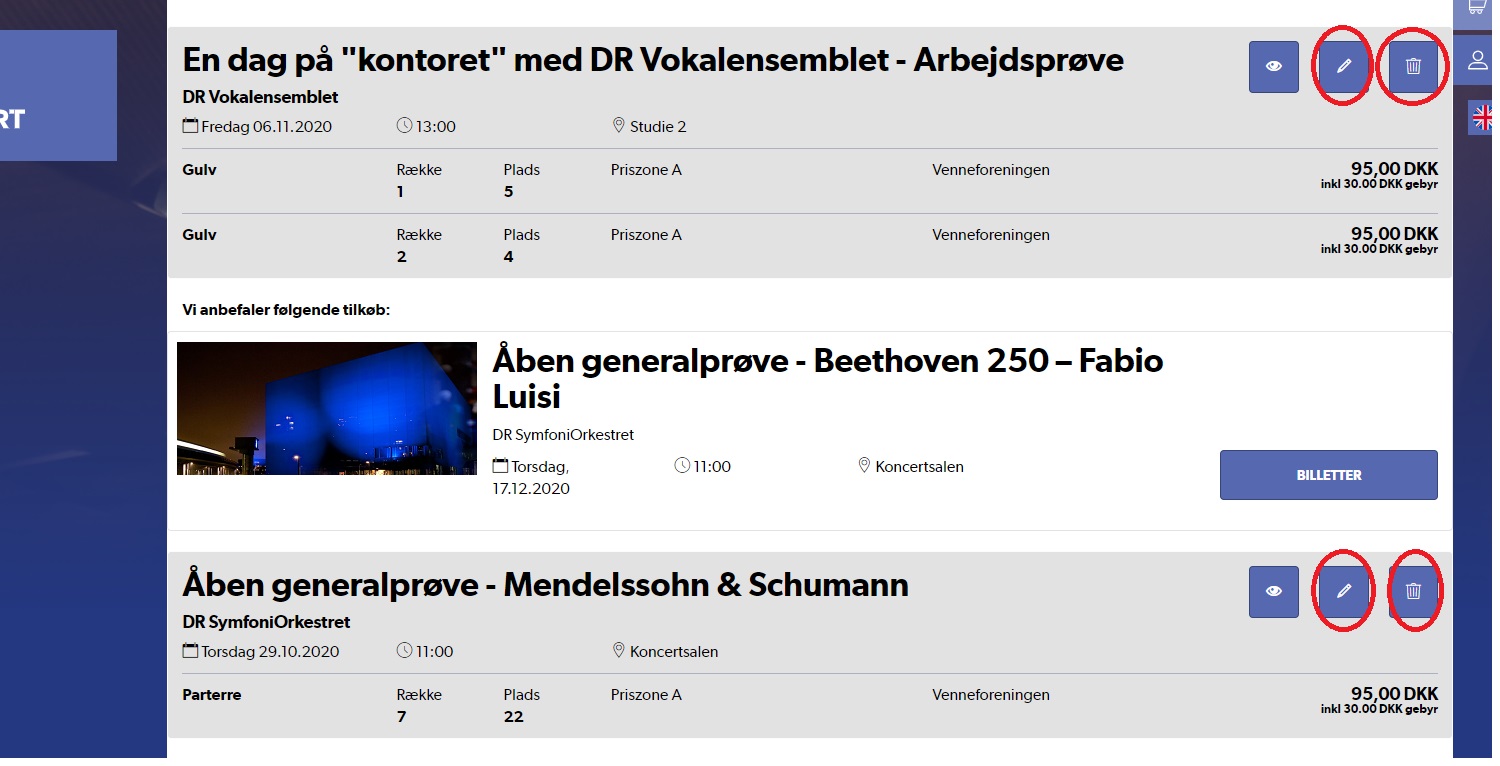
In the overview of the tickets you have reserved, you can change your choices. If you want to change tickets, tap on the pencil to return to the overview of the hall, and if you want to delete the reserved tickets completely, tap on the trash can:
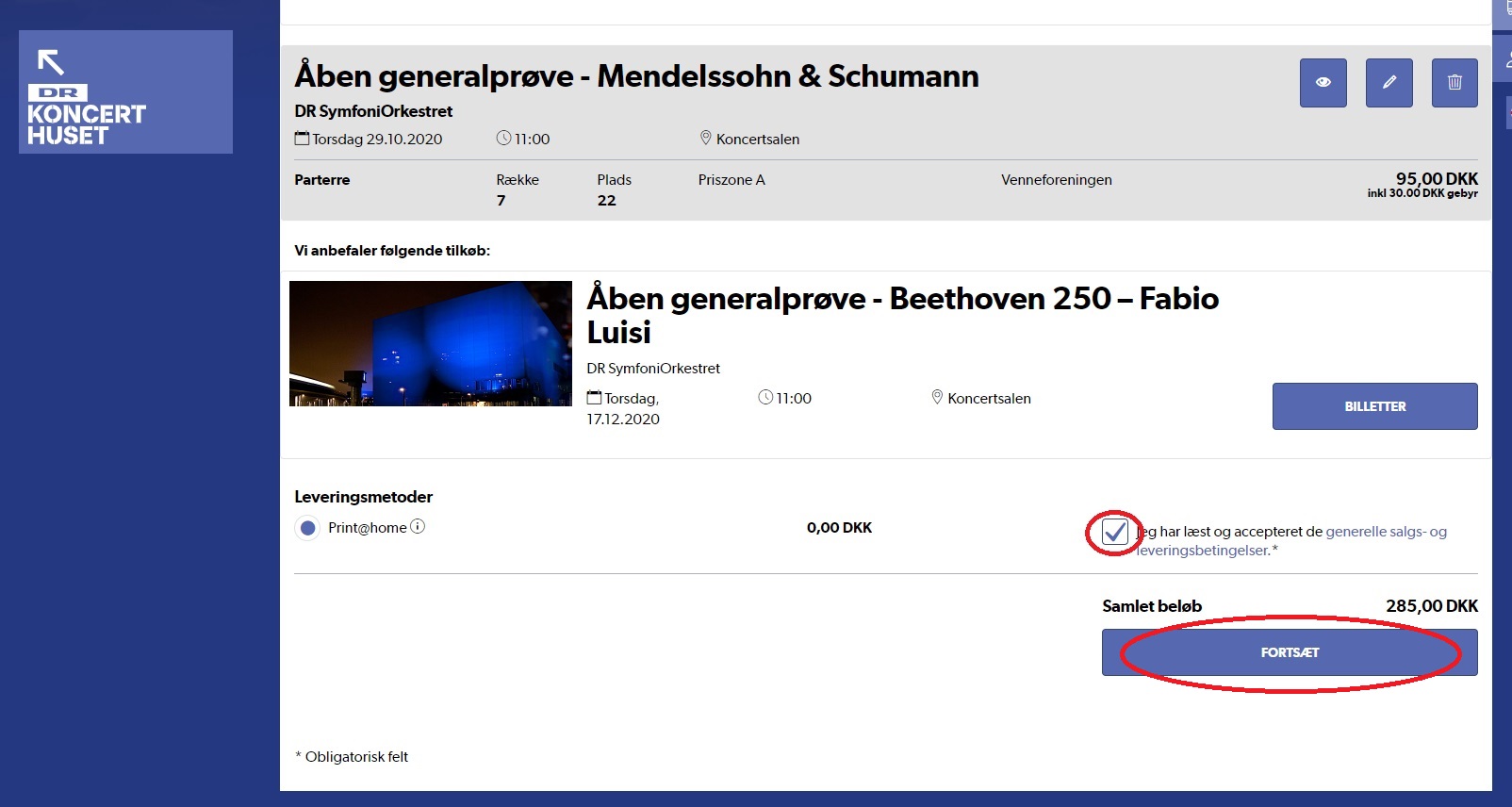
If all tickets are as they should be, then Move to the bottom of the page and click on ”I have read and accepted the general terms and conditions” and click ‘Continue’:
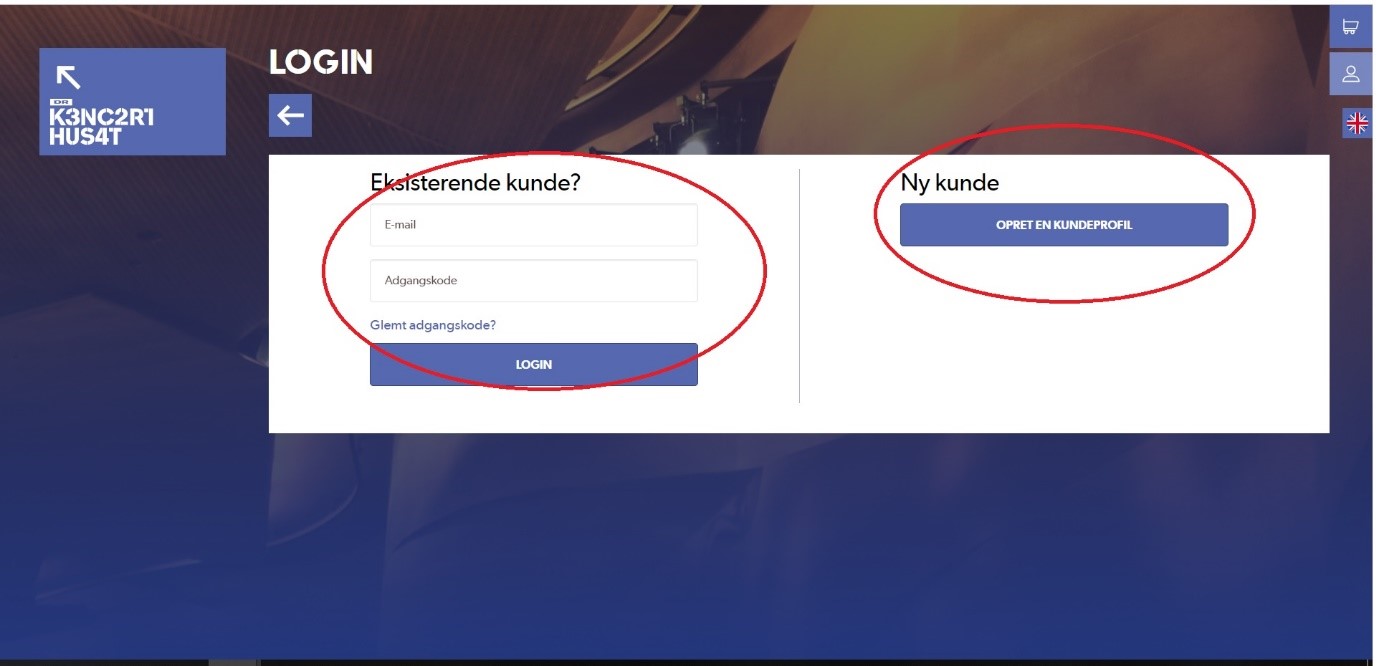
You will now be taken to the page where you need to log in. Remember that this is NOT your Friends of DR Koncerthuset login, but the one for DR Koncerthuset. If you haven't created a login, you can also do it from here:
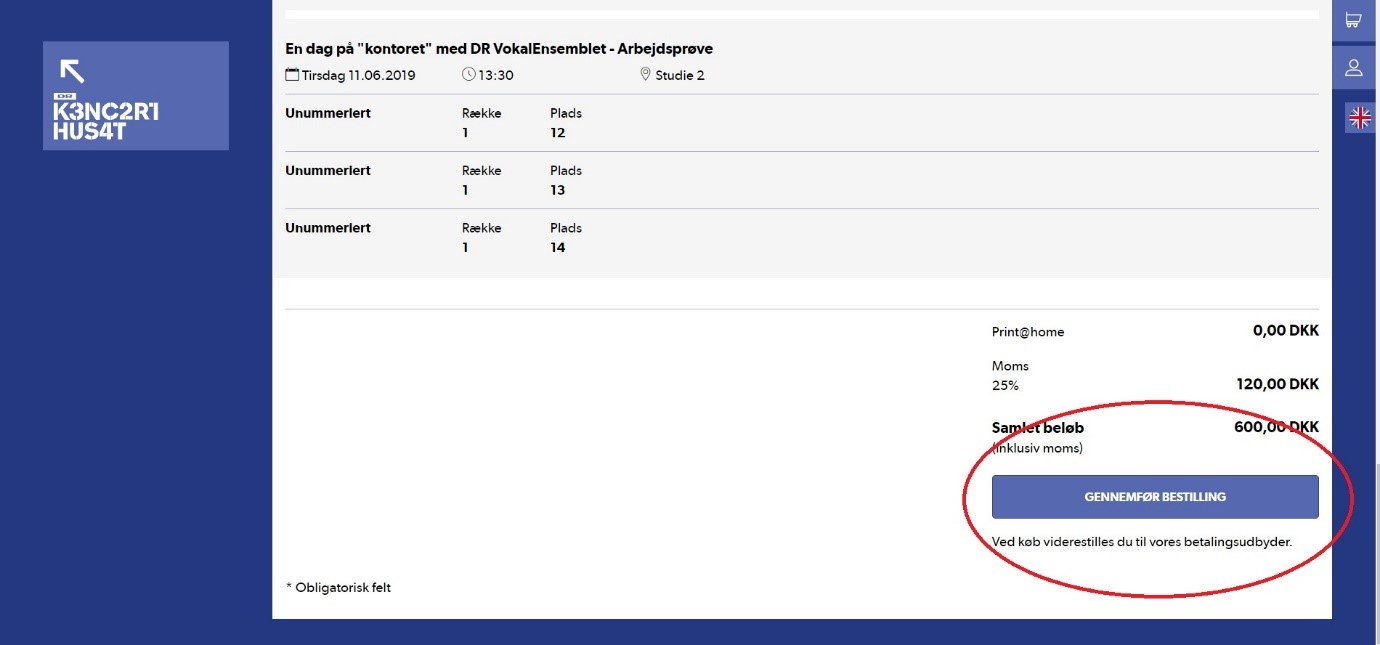
Once you are logged in, you will be taken to a final summary page of your purchase. If everything is still correct, click *Complete Order” and you will be guided to the payment module:
Note: Once you have clicked ‘Complete Order’ you cannot go back and change your order, so double-check that everything is as it should be.
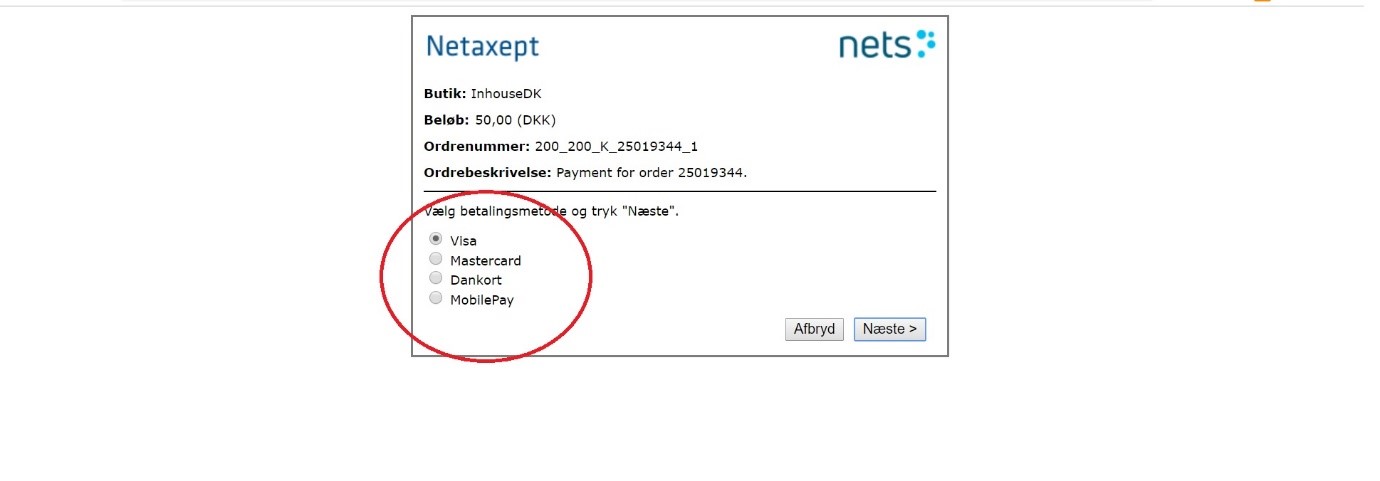
Select card type and enter your details:
Congratulations! You will now receive a confirmation and the tickets will be sent to your email.