NOTE: This is only a guide to the procedure for purchasing tickets via the website. Nothing can be purchased here and all prices and events are examples only. All instructions and important information are marked with a red circle on the images. The guide is designed to be read on a computer, so the images may look strange if read on a smartphone.
When ticket sales open, there will be a “Buy Ticket” button next to each of our events as shown below.
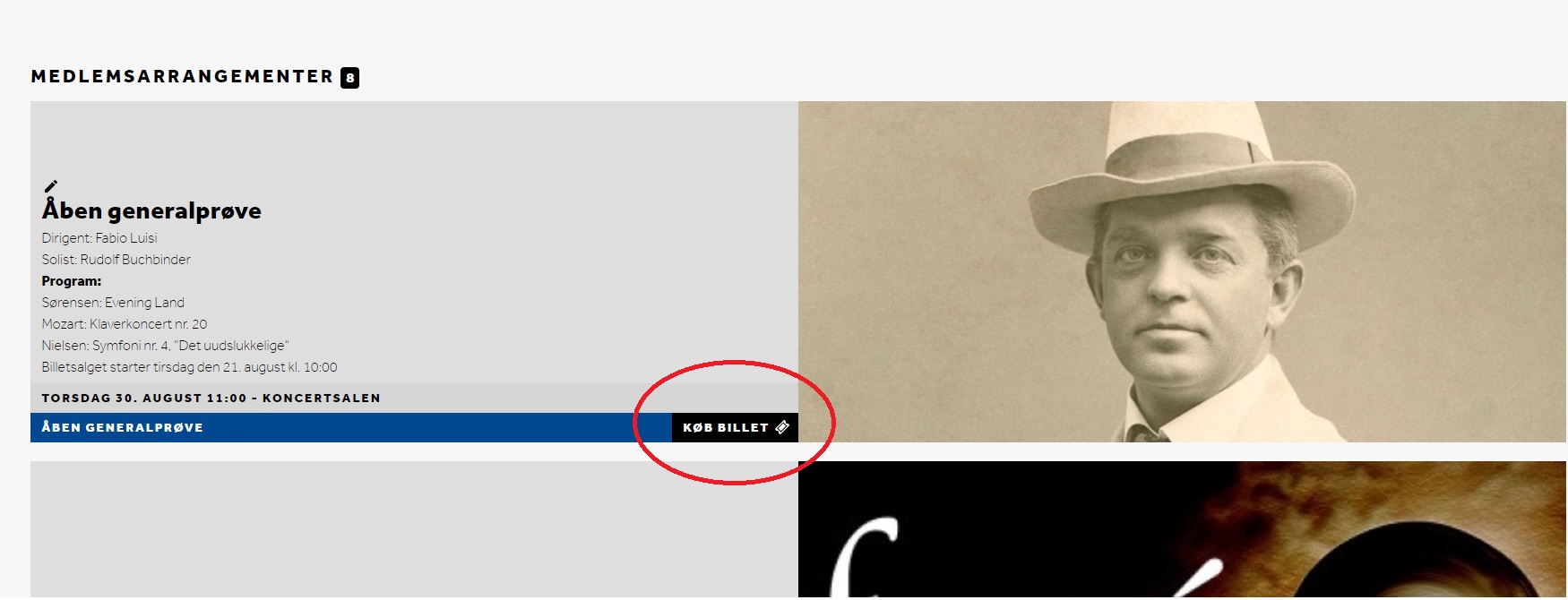
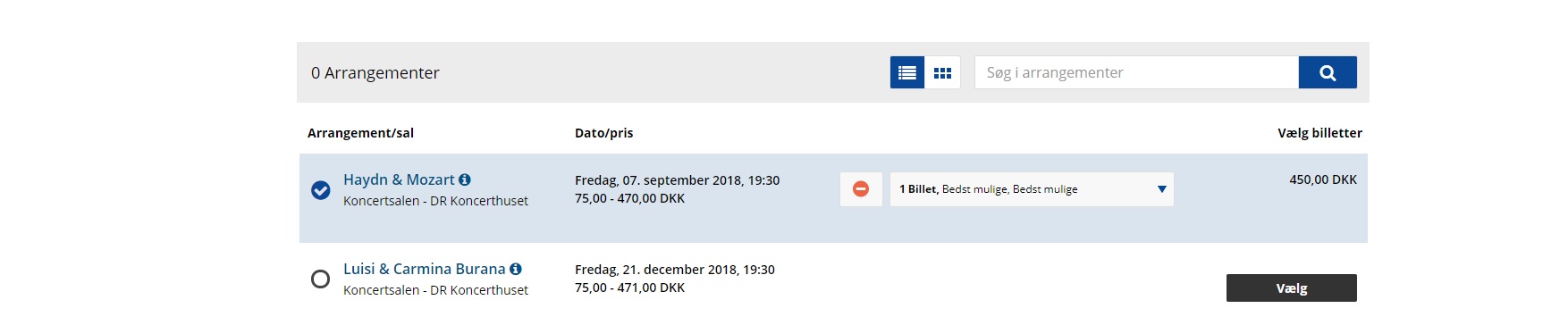
Click on it to go to the page where you can buy tickets. Once clicked, you will be taken to a page with an overview of all our events and next to each event is a button that says “Select” - click it to select tickets.
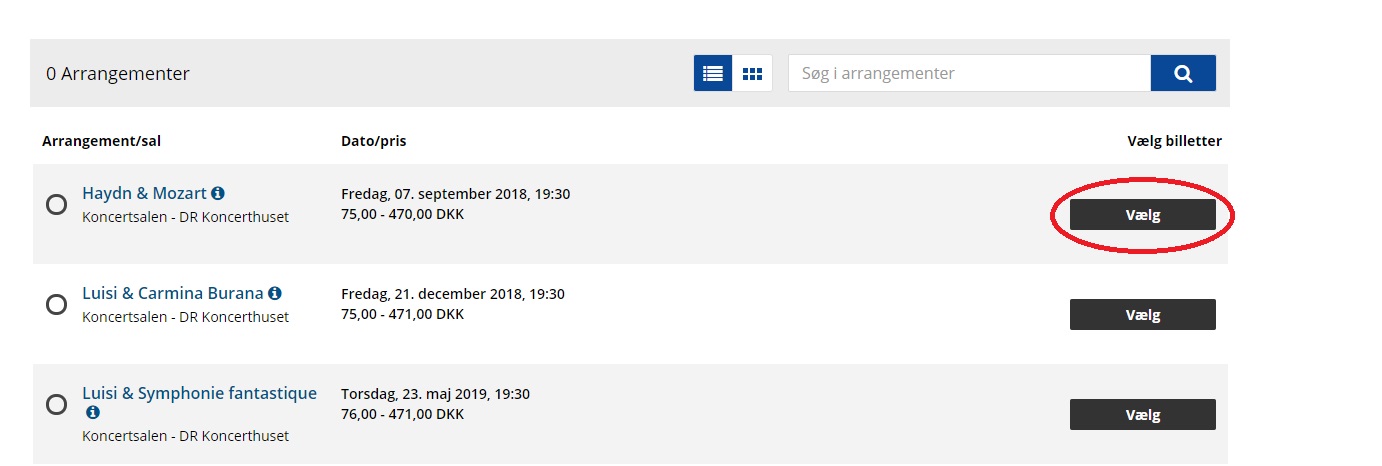
When you click select, a box opens with several options.
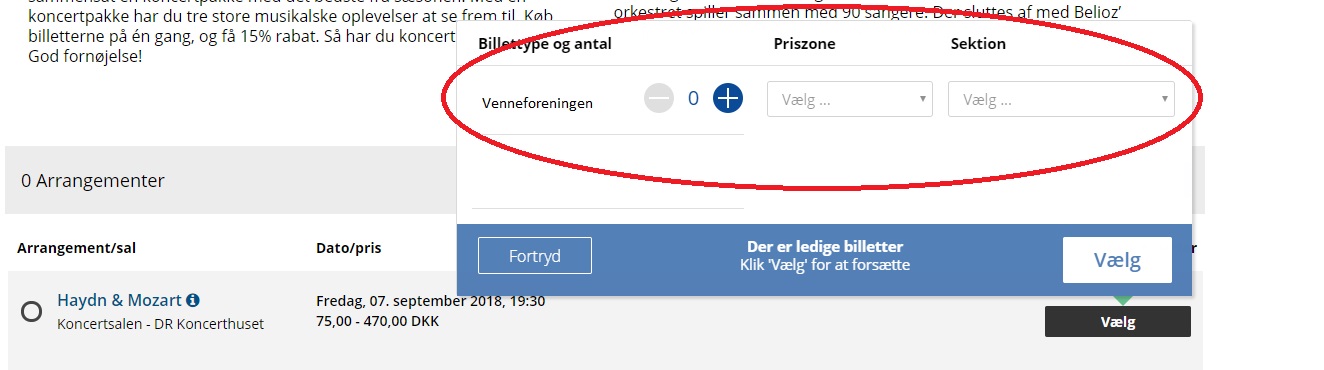
Tap the blue plus to add the number of tickets you want. Under ‘Price zone’ select ‘Best available’. Under ‘Section’ you can either select ‘Best Available’ or choose which section of the hall you want to sit in. If you select ‘Best Available’, the system will check for the best available seats that match the number of tickets you want.
When everything is filled in, the bottom box will change colour to green and if you click ‘Select’ again, the tickets will be added.
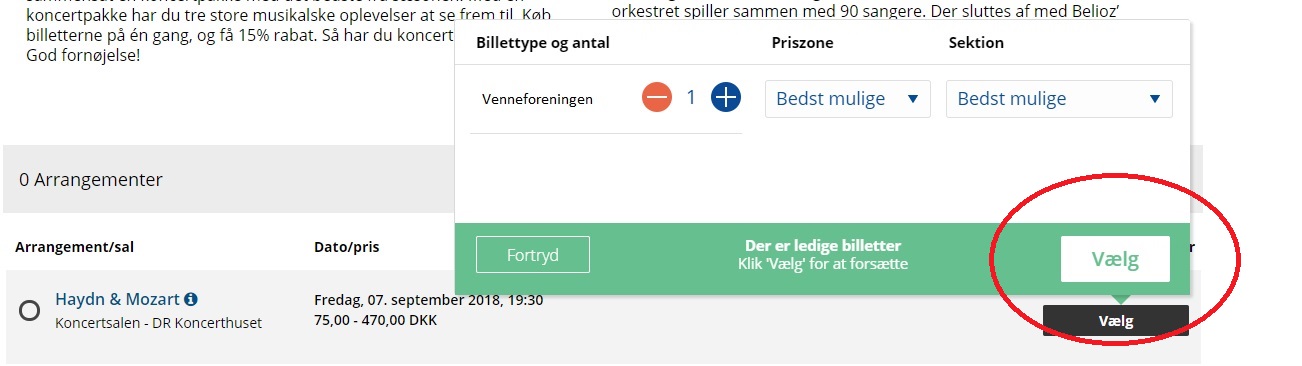
Once the ticket is added, it will appear next to the event and you can now repeat the procedure for the other rehearsals.
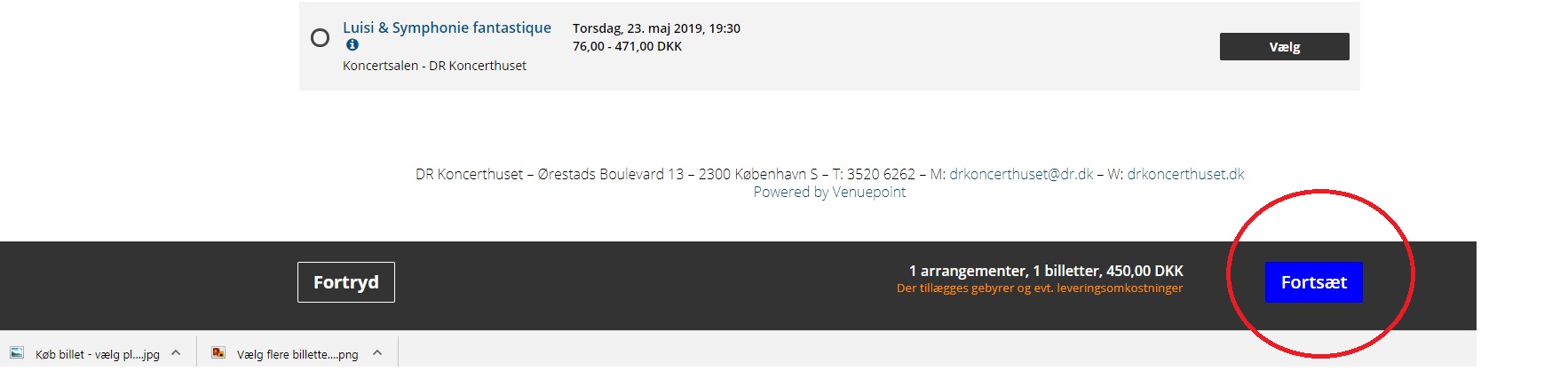
Once you have added all the tickets you want, click ‘Continue’ at the bottom of the page.
NOTE: Only after you have selected all the events you want to attend, the number of tickets and pressed ‘Continue’ will the system assign you your seats.
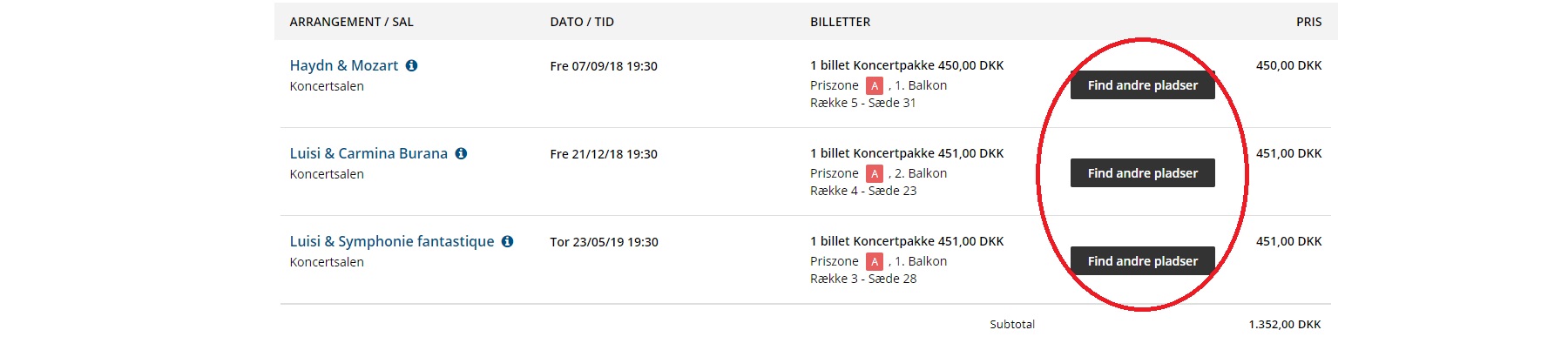
You will now be taken to a page where you have an overview of your rostered tickets. If you have asked the system to assign you seats, you can see which ones you have been assigned. If you want to change any of your seats, click ‘Find other seats’ next to the sample you want to change.
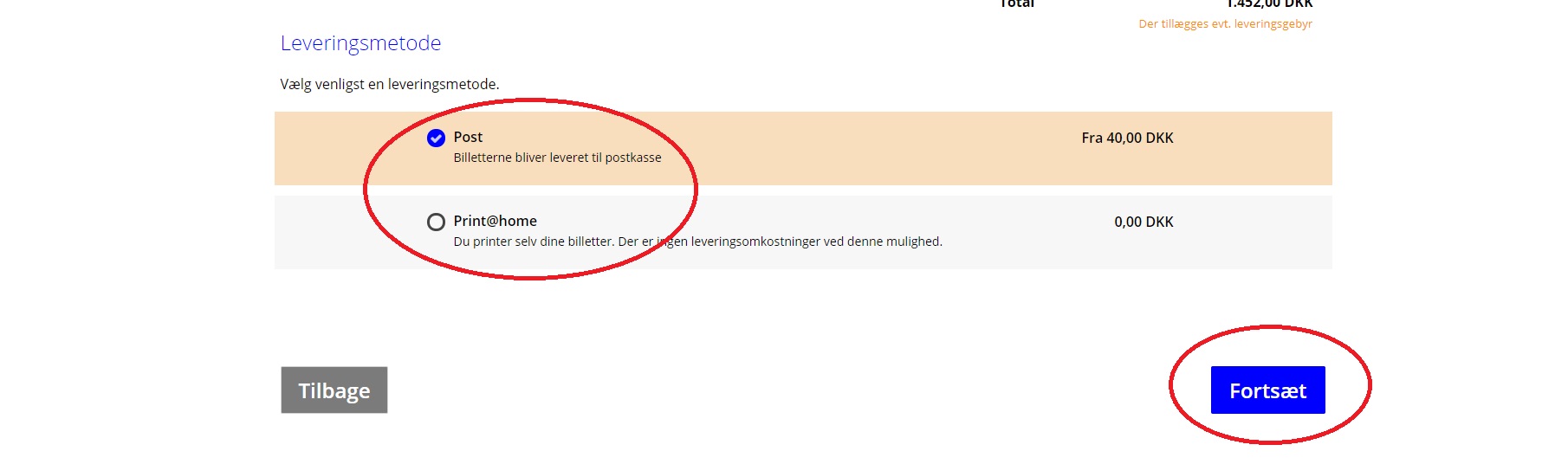
Once all tickets are as they should be, you need to choose how you want them delivered. You can either have them sent by post, tick the blue box next to ‘Post’, or have them sent by email and print them yourself, tick the blue box next to ‘Print@home‘. Then click ‘Continue’
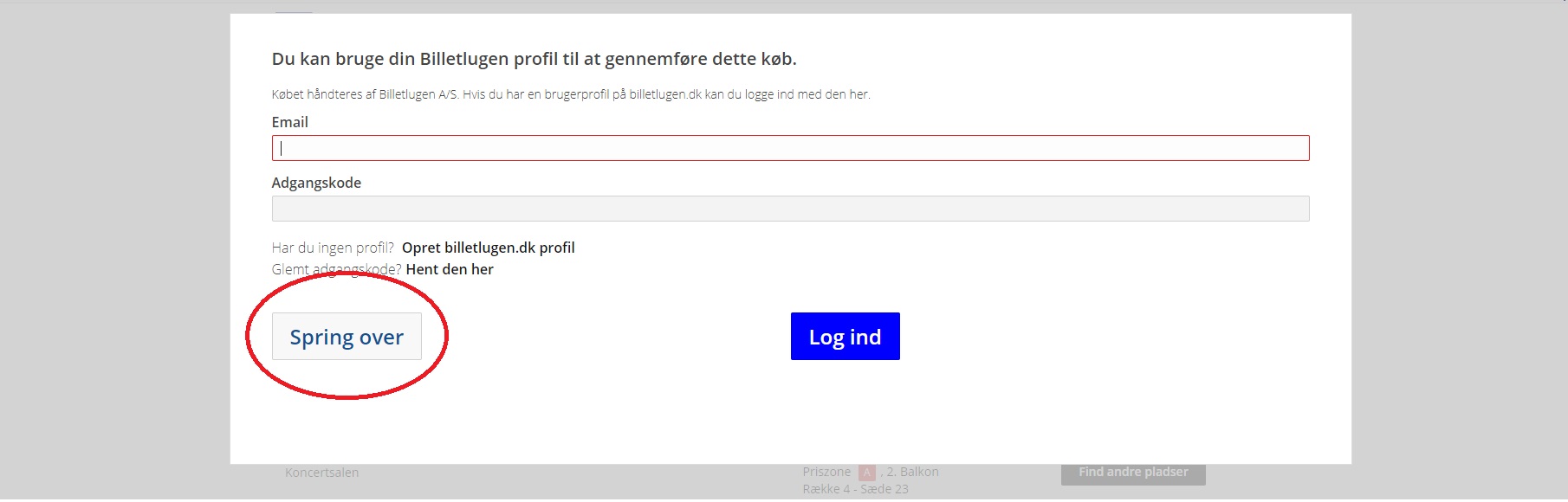
If you have a login for Billetlugen you can enter it here, or simply press ‘Skip’.
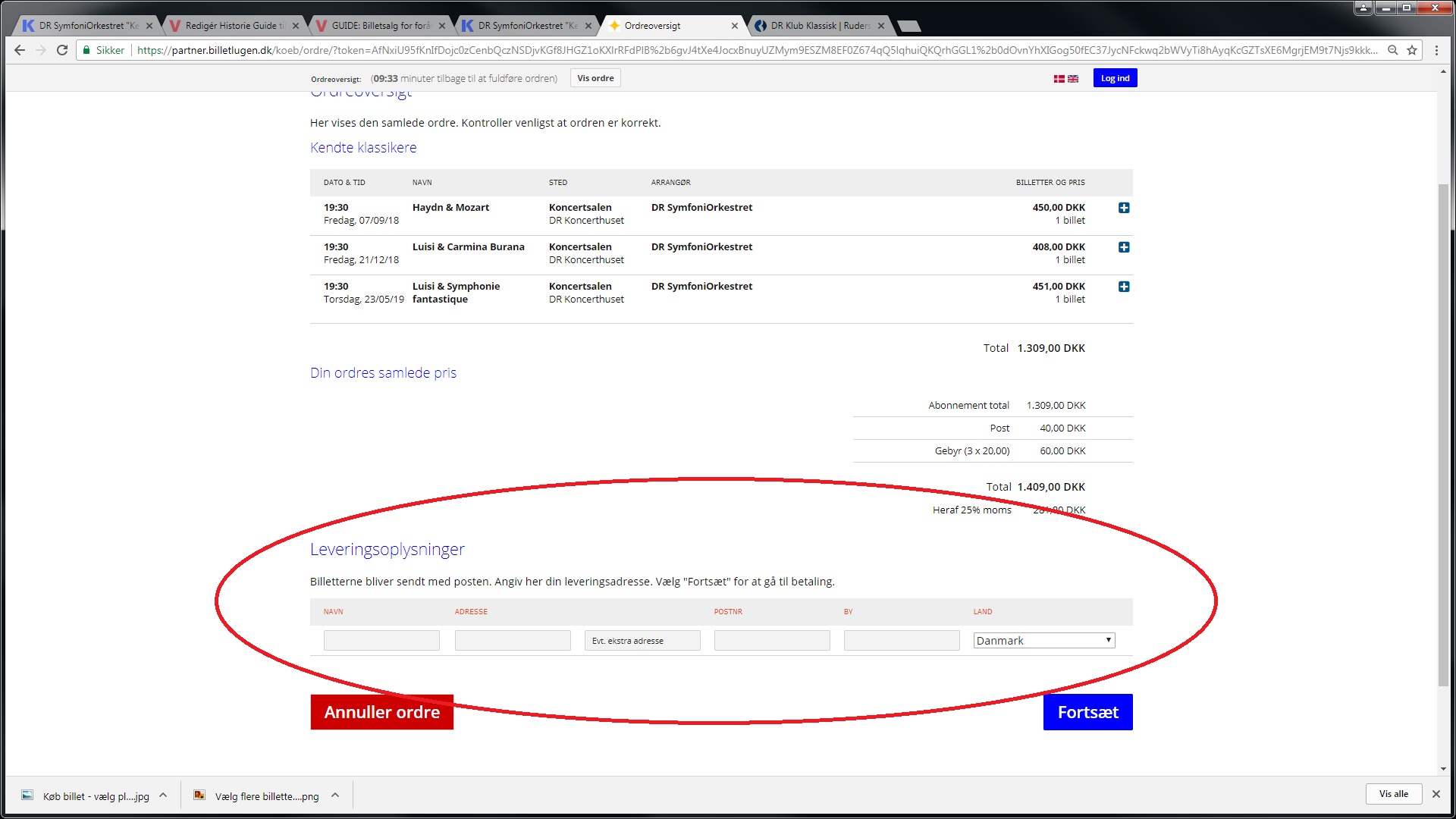
You will now be taken to a page with an overview of your entire order. If you have chosen to have the tickets sent by post, fill in the name and address you want the tickets to be sent to under ‘Delivery information’. Then press ‘Continue’.
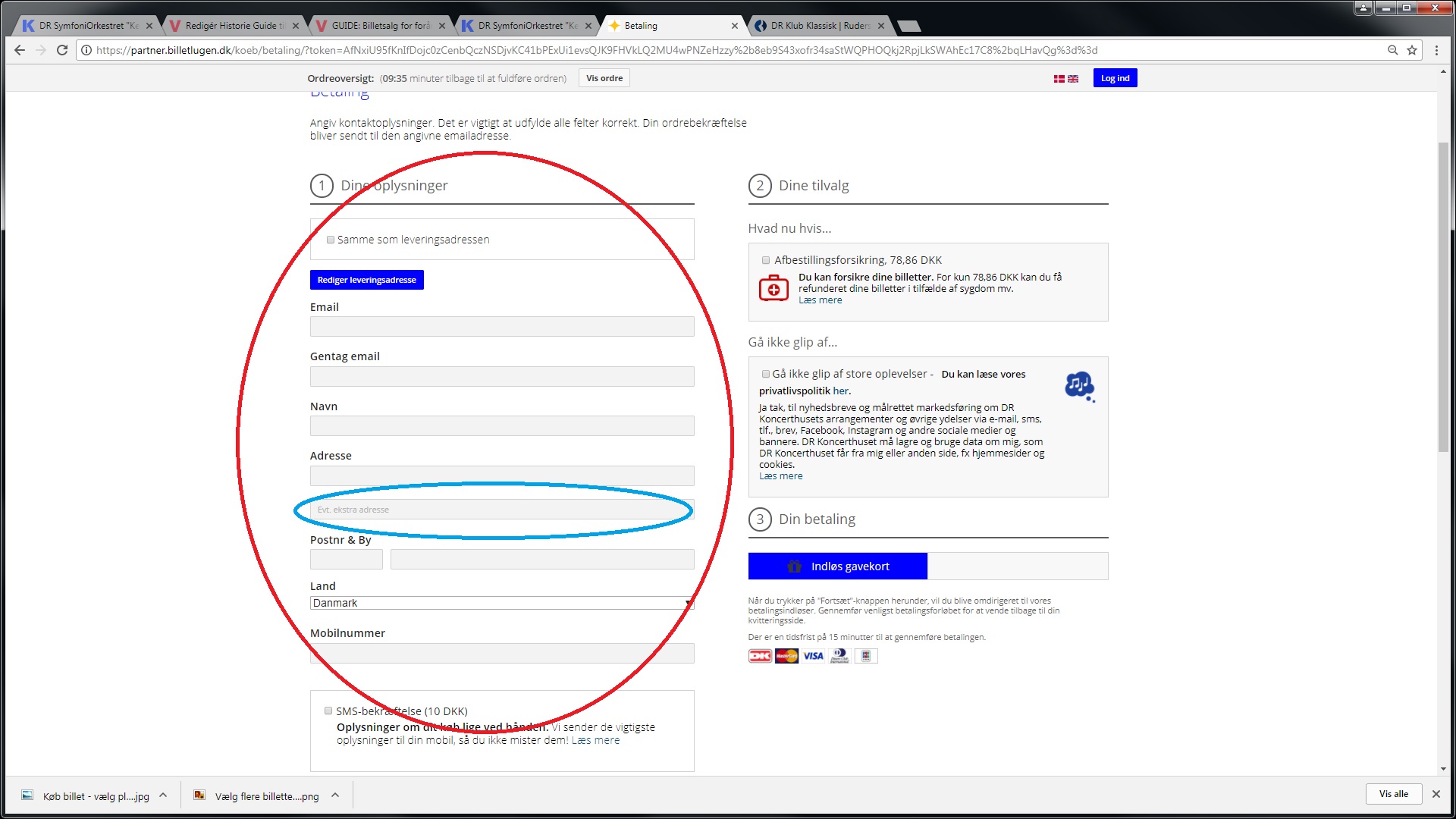
You will now enter the first part of the payment module, where you need to fill in the fields with your details.
If you buy more than one ticket, in the field labelled ‘Additional address’, you need to fill in the membership numbers of the members you are buying tickets for. This is marked with a light blue circle below.
When all information is complete, remember to tick “I accept the terms of sale and delivery” and then press ‘Continue’.

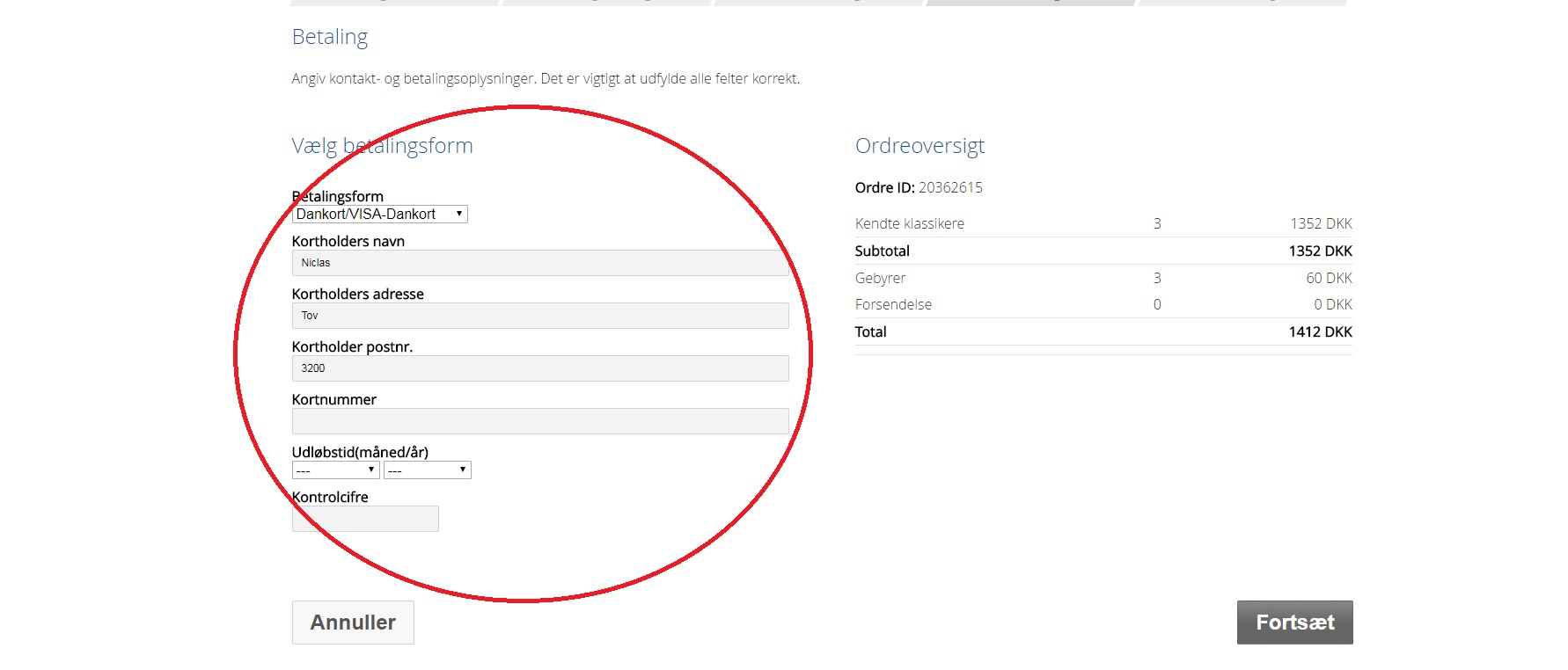
Next, select the payment method and enter your card details. Once that's done, press continue.
Congratulations! You will now receive a confirmation and the tickets will be sent to the address or email provided.